Parameter Map Panel
The Parameter Map panel is used to display and further process multi-ROIs non-NLSF analysis parameters (which are displayed in the dedicated Decay Fit Parameter Map panel). Its functions are similar to those of the Decay Fit Parameter Map. The main difference between the two panels is that the Parameter Map can be used to display the results of multiple analyses, by simply selecting the Parameter Map Set of interest. Examples of such Parameter Map Set are discussed in the Examples of Parameter Map Set section below.
The panel consists of different controls and indicators as illustrated below and discussed next.
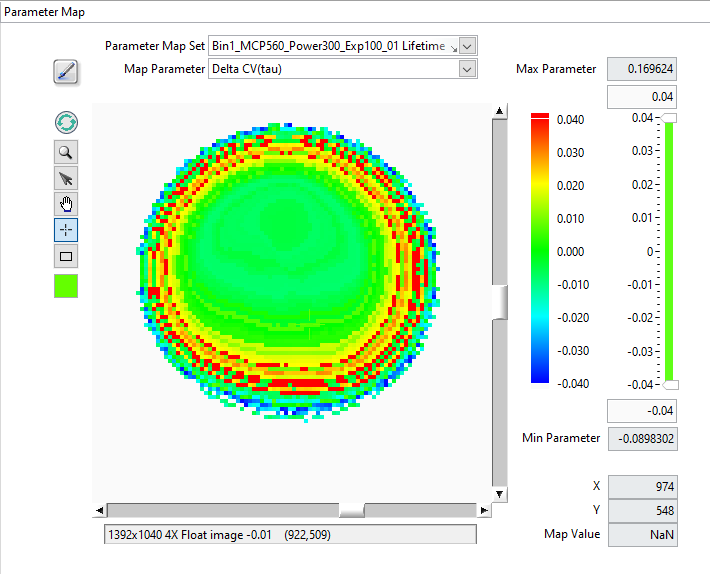
The main object is the map itself, which represents a color-coded image of the selected parameter (Map Parameter pull-down list at the top right), based on the selected Parameter Map Color Scale (next to the map) and the values of the Parameter Map Display Range (to the right of the color scale)
Note that in contrast with the Decay Fit Parameter Map, results from
different analyses can be visualized sequentially by selecting the
appropriate Parameter Map Set from the corresponding pull-down menu.
Unused Parameter Map Sets can be deleted from memory using the Delete
Parameter Set right-click menu item of the Parameter Map Set pull-down menu.
The Max Parameter and Min Parameter indicators provide the actual total range of the computed parameters, while the controls immediately above and below the slide represent the position of the sliders, which themselves specify what are the selected Min and Max of the displayed parameters.
Any parameter above or below these two limits are color-coded with the unique color boxes located at the top and bottom of the color scale (by default, the bottom color is white, and is therefore not visible in the snapshot above). Left-click above or below the color scale to reveal the color picker window and select the color highlighting parameters respectively above or below the display range minimum).
The X, Y and Map Value indicators at the bottom right provide the location of the cursor (also visible in the image information bar below the map), as well as the actual map value at that location. if that latter indicator appears unresponsive, briefly move the mouse out of the window and back to reactivate mouse tracking (that trick also work to reactivate the Local Decay Graph Window mentioned below).
The square Tools buttons on the top left of the Decay Fit Parameter Map
allow zooming, selecting, moving or clicking the image or a ROI. Note that the
Rectangle tool is only used to zoom in on a specific region of the map in
combination with the Alt key.
The Refresh Parameter Map button forces redrawing the map, while the square color selector at the bottom allows defining the color of the ROIs drawn over the map.
Finally, the Overlay Parameter Map button at the top left (brush tool) enables overlaying the current Decay Fit Parameter Map on the Source Image.
Parameter Map Menu
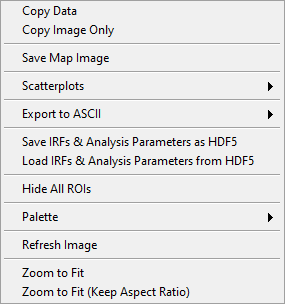
The Parameter Map context menu is shown below and discussed next.
.
Copy Data: This copies the LabVIEW image object bitmap, including tool palette, scroll bars, and image information.
Copy Image Only: Only copies the visible image.
Save Map Image: Saves the whole image as a PNG file (with dialog).
Export to ASCII:
Export Map Data as ASCII: This will export the current map image as an ASCII matrix of parameter values. If only a few of the image pixels have actual parameters associated with them, this will result in a mostly
NaN-filled file, with a few isolated actual values.Export All Maps Data as ASCII: This will export all parameter map images as separate ASCII matrices of parameter values.
Export ROI Data as ASCII: This function exports all parameters for the selected ROI. Note however that there are 3 different use cases:
If the the ROIs used to compute the map are all single-pixels and the selected ROI is a single-pixel ROI, this will export a single row of parameters, preceded by the ROI index and pixel coordinates.
If the the ROIs used to compute the map are not all single-pixels and the selected ROI is one of the original ROIs used for computing the map, this will export a single row of parameters, preceded by the ROI index and pixel coordinates.
Possibly more interesting, if the the ROIs used to compute the map are all single-pixels but the selected ROI is not, this will export multiple rows of parameters corresponding to the different pixels in that ROI, preceded by the ROI index and pixel coordinates.
Export All ROIs Data as ASCII: Similarly to the previous one, this function exports all parameters for all the ROIs. Again, there are 3 different use cases:
If the the ROIs used to compute the map are all single-pixels and the ROIs are also single-pixel ROIs, this will export multiple rows of parameters, preceded by the ROI index and pixel coordinates.
If the the ROIs used to compute the map are not all single-pixels and the ROIs are the original ROIs used for computing the map, this will export multiple rows of parameters, preceded by the ROI index and pixel coordinates.
Possibly more interesting, if the the ROIs used to compute the map are all single-pixels but the ROIs used are not, this will export multiple rows of parameters corresponding to the different pixels in these ROI, preceded by the ROI index and pixel coordinates.
Scatterplots: submenu to select the type of scatterplot to export to the Lifetime & Other Parameters Graph. These scatterplots can be limited to pixels verifying a set of constraints on fit parameters and derived quantities

.
Create Selected Parameter Scatterplot: Sends all parameter values P_i in the image as a (i, P_i) scatterplot, where i is the index of the ROI.
Create Selected Parameter vs Intensity Scatterplot: Sends all parameter values P_i in the image as a (I_i, P_i) scatterplot, where I_i is the total ROI decay intensity. This requires the ROIs used during NLSF analysis to be present in order to be able to compute each ROI’s total intensity.
Create Parameter 2 vs Parameter 1 Scatterplot: Opens a dialog window to select the two parameters (P1, P2) to export as pairs.
Change Map Resolution: when loading a Decay Fit Parameter Map file, the default size of the map is set to that of the loaded dataset. If that dataset does not correspond to the loaded map data (or no dataset is loaded), it is necessary to manually set the map’s resolution (i.e. image size), which this function allows doing.
The other functions are self-explanatory.
Examples of Parameter Map Set
Lifetime CV Analysis Parameter Maps
The lifetime coefficient of variation analysis discussed in the Lifetime Variance Analysis Maps section outputs several maps grouped into a common Parameter Map Set. The following maps are computed:

Delta SDV(tau): the map represents the difference between the observed and expected lifetime standard deviation of the \(\tau_1\) lifetime map, where \(SDV_\tau = CV_\tau*\tau\).
Delta CV(tau): the map represents the difference between the observed and expected lifetime coefficient of variation of the \(\tau_1\) lifetime map.
CV Approximate F-Test: the map represents the significance level of the observed lifetime CV ratio using an approximate F-test.
Variance F-Test: the map represents the significance level of the observed lifetime variance ratio using the F-test.
CV Residuals test: the map represents the significance level of the observed lifetime CV using a scaled residuals standard deviation.
CV Bootstrap SDV test: the map represents the significance level of the observed lifetime CV using a scaled CV standard deviation computed by bootstrap.
# Elements: map of the number of element in the intensity slice the pixel belongs to.
<I>: average slice intensity map.
Slice: slice index map
(last updated: 2026-09-15)