Notebook Window
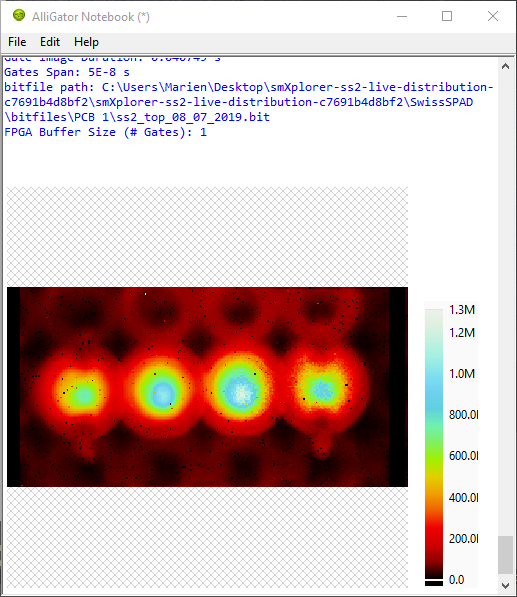
The Notebook window is a separate window receiving text information from
AlliGator, such as action summary and analysis results. The Notebook window can
be opened using the Windows:Notebook menu item or the Ctrl+N
keyboard shortcut. Closing the window doesn’t lose its content, unless
AlliGator is closed as well (see below)
The main component of the Notebook is a Rich Text Box, which can contain images pasted from the clipboard or other similar objects. Naturally, the user can type text, edit the content of the Notebook with standard shortcuts and a few formatting options accessible via the right-click menu.
A list of available shortcuts can be accessed using the Help:Show Notebook
Shortcuts menu of the Notebook window.
When the Verbose Mode option (Settings:Miscellaneous window) is
checked, individual analysis steps (usually hidden from the user) are reported
in the Notebook in light gray font.
When the Verbose Error Mode option (Settings:Miscellaneous window) is
checked, error messages (also usually hidden from the user) are reported in red
font. While this can generate a lot of unwanted information, it is easy to
delete afterwards and is useful for debugging purposes.
Saving & Loading the Notebook
The Notebook is backed-up at regular intervals, as indicated in the bottom
message box. The backup file can be found in the
C:\Users\Username\AppData\Local\Temp folder, where Username is the
Windows login. Note that this folder might be set to invisble by default [1].
The file name is of the form ~AlliGator Notebook ProcessID.rtf, where
ProcessID is the ID number of the AlliGator.exe process as found in the
Task Manager. This means that when two AlliGator copies are running, their
respective Notebook’s backup are identifiable by the ProcessID suffix. This
backup can be useful in case the user forgets to save the Notebook before
quitting, or in case of an application or computer crash.
While the content of the Notebook is automatically backed up, it is recommended
to actively save the Notebook before quitting using the File:Save or
File:Save As... menu item, If the Notebook has already been saved once,
using Save will update the previous saved file.
To save the current Notebook content in a different file, use the
Save As... option instead. A reminder to save the Notebook is provided when
quitting AlliGator, if the Notebook has already been closed. If the Notebook is
still open when AlliGator is closed, the user can still modify the Notebook and
save it.
It is also possible to load a previous Notebook using File:Open. A dialog
will remind the user that doign so will overwrite the current content of the
Notebook.
Tip
It is recommended to take advantage of the Notebook to insert annotations, paste intermediate plots or images and in general keep track of user workflow. Saving the Notebook at the end of an analysis session provides a convenient record of analysis steps used parameters and during analysis, which goes a long way in ensuring reproducibility.
Notes